To write a diary entry with your voice in Ying Journal on iPhone, open Speak, talk about a moment from your day, and review the recognized text. Edit any words that need changing, choose “Use this text,” then review and save your diary entry.
Voice journaling gives you a way to begin when speaking feels easier than typing. This guide follows the Ying Journal screens shown below: listening, reviewing your words, and using them in your diary. The screenshots contain example entries; your own words and responses will be different.
What does voice journaling mean in Ying Journal?
Voice journaling means speaking about your day instead of starting with a typed entry. In Ying Journal, voice input turns what you say into editable text. You can read it, correct it, and use it in a diary entry.
The workflow described here is speech to diary text. You can keep your own phrasing and choose how much to edit before saving. A short account of one moment is enough; you do not need a complete recap of your day.
1. Open Speak and begin with one moment
Open Ying Journal’s Speak screen and start voice input when you are somewhere comfortable to talk. If your iPhone asks for microphone or speech-recognition access, review the request before continuing.
Start with a simple opening such as “The moment I want to remember is…” Say what happened, then add one detail that matters to you: what you noticed, how it felt, or why you are still thinking about it. You can pause or leave a thought unfinished.
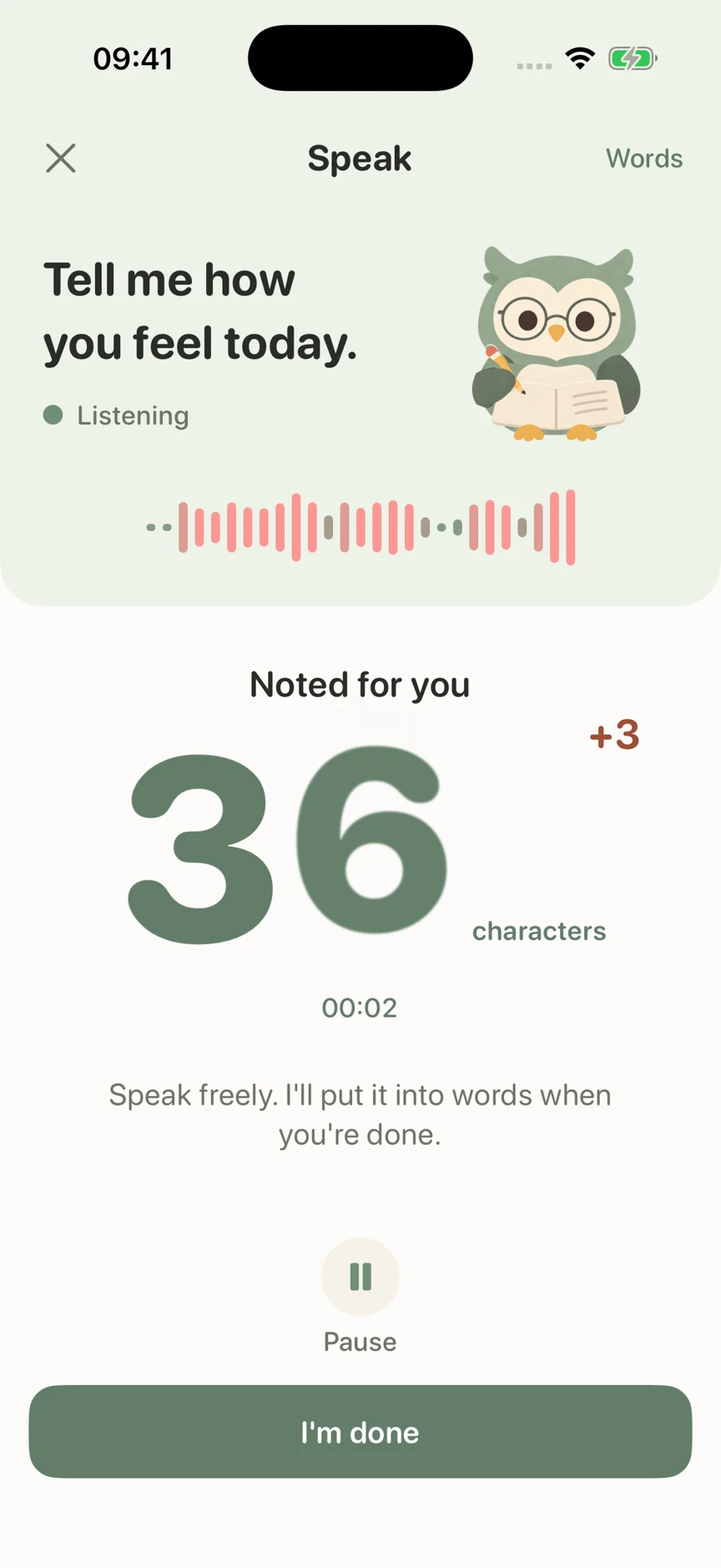
The moment I want to remember is the walk after work. I went one more stop along the river. The leaves were moving in the wind, and I finally stopped thinking about the meeting.
2. Read and edit the recognized text
When you finish speaking, read the text on the review screen. Check names, places, and words that could change your meaning. Tap the text to make an edit.
The screen offers Original and Cleaned versions. Compare them and choose the one you want to use. Keep an uncertain phrase uncertain if that is how the moment felt: “Maybe I was disappointed” says something different from “I was disappointed.”
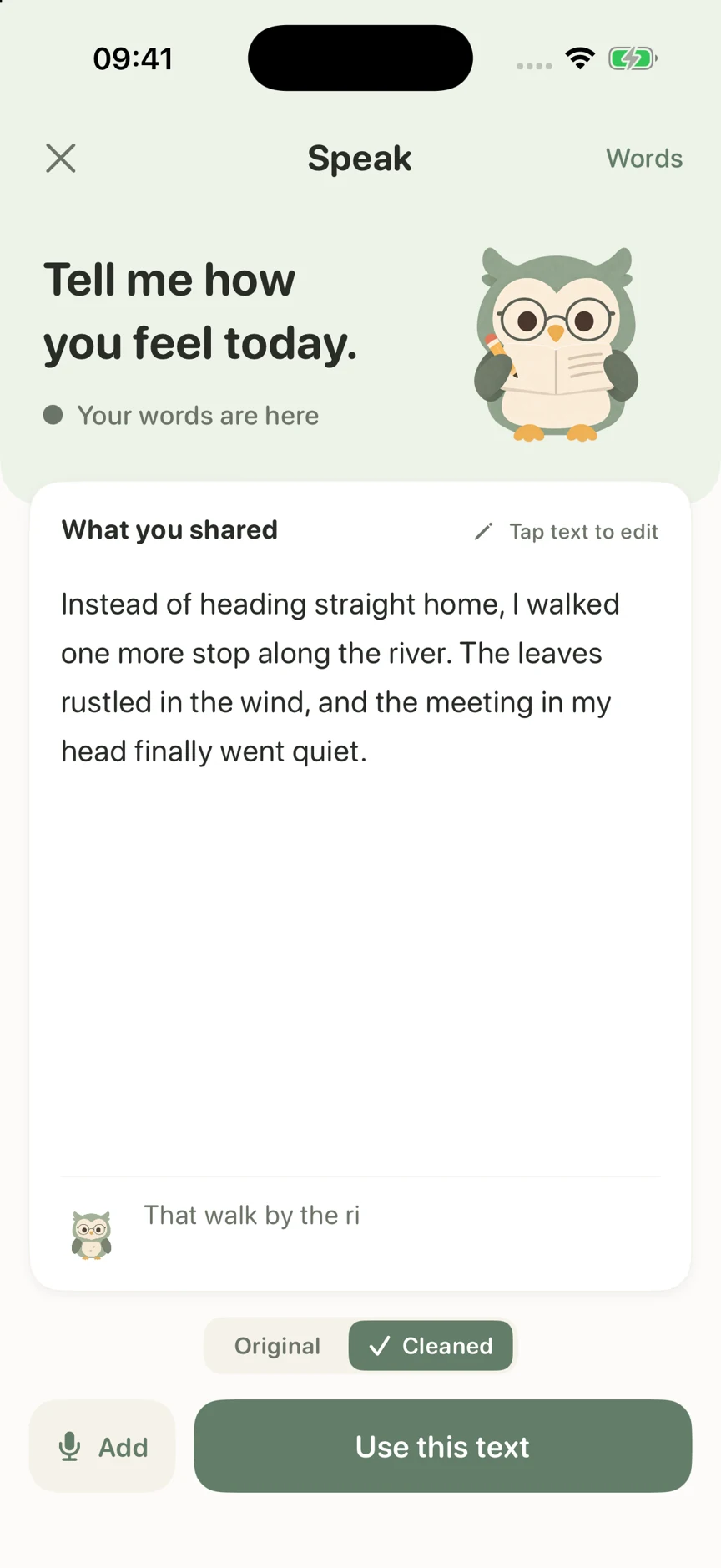
3. Use the text and save your diary entry
Choose “Use this text” to carry the words into your diary. Review the entry once more and make any final changes before saving.
Add enough context that the entry will make sense later. A place, a person’s name, or a short title can help. You can stop after a few sentences. The useful entry is the one that keeps what you wanted to remember.
- Check that the text says what you meant.
- Correct a name, date, or detail that was recognized incorrectly.
- Save the entry when you are happy with it.
4. Follow the thought with a virtual friend
Ying Journal’s AI virtual friends can respond to your diary entries with different points of view. After a diary response, you can continue a conversation with a friend and ask a follow-up question.
For an entry about an evening walk, you might ask, “How could I make a little more room for that next week?” Use the reply as another perspective, and keep your own interpretation of the day. Replies vary with your entry and the virtual friend.
When is speaking a useful way to begin?
Try voice input when the thought is clear in your head but typing feels like an extra step. It can also be useful when you want your first draft to sound like the way you talk. Choose a setting where speaking is comfortable and does not distract you from what you are doing.
Typing may fit better when you want quiet or more time between sentences. You can choose the approach that suits the moment. Either way, leave a little time to read the entry before saving it.
The moment I want to keep is… The detail I nearly missed was… What I want to remember about it is…
Voice journaling or an audio diary: which fits your entry?
An audio diary keeps a recording you can play back. A speech-to-text diary begins with your voice and produces written words you can read and edit. Decide whether you want to return to the sound of the moment or to a written account of it.
This tutorial covers Ying Journal’s speech-to-text workflow. Review the recognized words before saving, especially people’s names and phrases that carry your meaning. If speaking aloud does not suit your setting, you can type your entry instead.
A small start, today.
Open Speak and describe one moment in a few sentences. Review the words, edit one detail if needed, choose “Use this text,” and save an entry that sounds like you.

A LITTLE PLACE FOR YOUR EVERYDAY
Try your first voice entry in Ying Journal.
Start with one moment. Speak, review and edit your words, then save your diary entry on iPhone.